
Welcome to this series of articles about accessibility in SwiftUI! Over the next weeks, we’ll explore different aspects of A11y to create truly inclusive applications. In this first article, we’ll focus on a fundamental technique: grouping elements.
The Scenario: A Book List 📚
Imagine you’re developing a book app. You have a list where each item shows:
- 🌆 A book cover
- 📗 The title
- 📝 The author
- 📆 The year of publication
- ⭐️ A star rating
Sounds simple, right? But when we activate VoiceOver, things get complicated…
Houston, We Have a Problem 🚨

If we don’t configure accessibility, VoiceOver will treat each UI element as an independent element. This means our users will have to navigate through five different elements to understand information about a single book. Not the best experience, right?
The Key Question: What Really Matters? 🤔
Before we start coding, we need to ask ourselves some questions:
- Does the cover image provide unique information that’s not in the text?
- Do we need VoiceOver to read decorative emojis?
- How does the user visually perceive this information?
The answer leads us to a conclusion: visually we perceive each book as a unit, not as separate elements. Let’s make the VoiceOver experience reflect this!
Solution 1: The Quick Way ⚡️
The most straightforward way to solve this is to group everything into a single accessible element:
BookView(book: book)
    .accessibilityElement()
    .accessibilityLabel("\(book.title) written by \(book.author) in \(book.year), \(book.stars) out of 5")
Solution 2: The Granular Approach 🎯
For more complex views, we can opt for a more structured approach:
struct BookInfoView: View {
    let book: Book

    var body: some View {
        HStack {
            Image(book.image)
                .accessibilityHidden(true)  // The image is decorative

            VStack {
                Text(book.title)
                // The default label works well here

                Text(book.author)
                    .accessibilityLabel("written by \(book.author)")

                Text("📆 \(book.year)")
                    .accessibilityLabel("in \(book.year)")

                RatingView(rating: book.stars)
                    .accessibilityLabel("\(book.stars) stars out of 5")
            }
            .accessibilityElement(children: .combine)
            // Combines all labels into a single fluid reading
        }
    }
}
The Result: A Unified Experience ✨
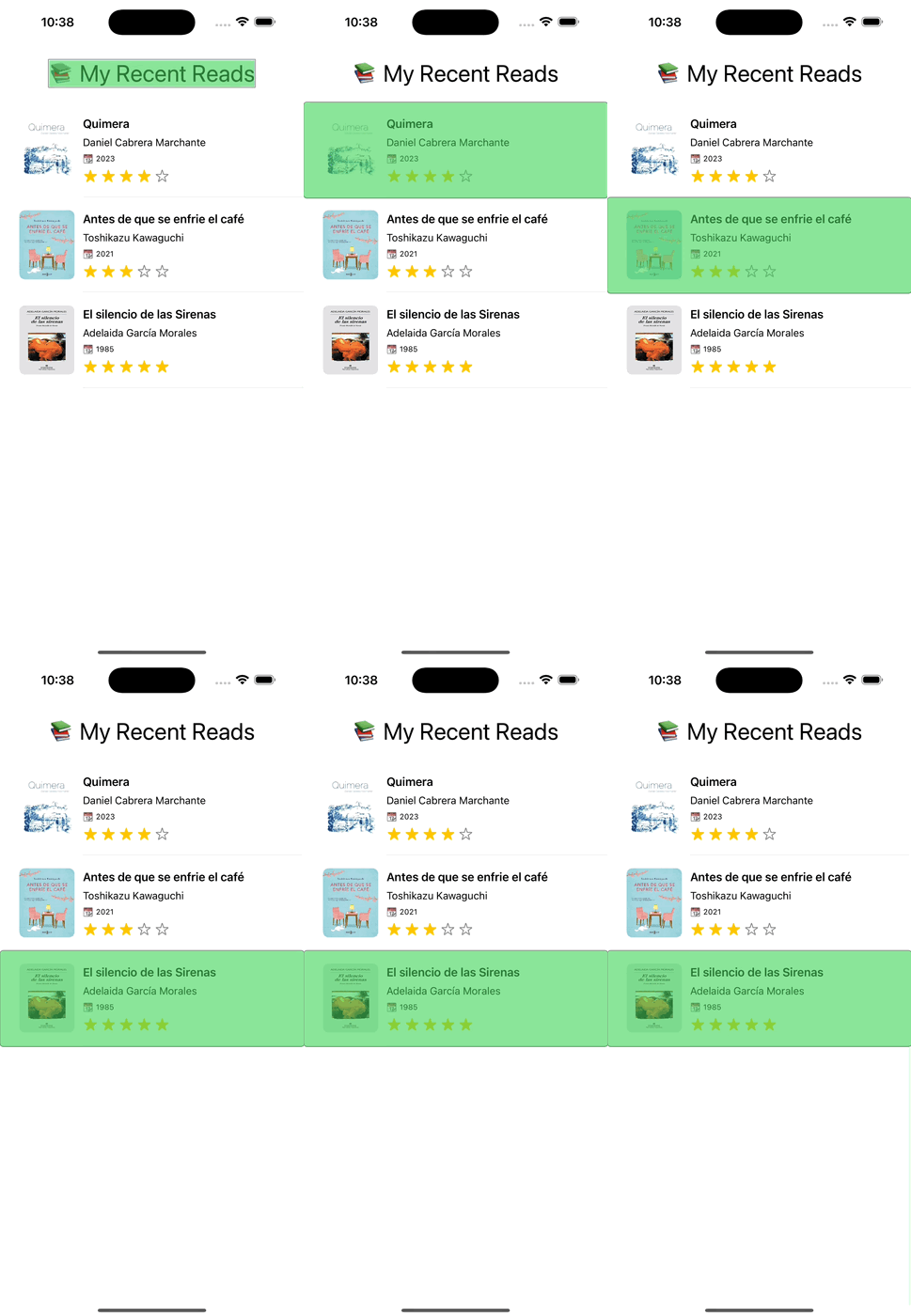
Now, VoiceOver treats each book as a coherent unit, offering a much more natural and efficient experience.
Which to Choose? 🤷♀️
- Solution 1: Perfect for simple and straightforward components
- Solution 2: Ideal for complex views where you need more control over each element
Conclusion and Next Steps 🎯
Accessibility is not an extra, it’s a fundamental necessity. In this article we’ve seen how proper element grouping can significantly improve the experience of users who depend on VoiceOver.
In the next article in the series, we’ll explore how to handle traits in SwiftUI. Don’t miss it!
Did you find this article useful? Do you have any questions, comments, or tips about accessibility in SwiftUI? Stop by BlueSky and let’s talk
Vamos a hablar de accesibilidad con SwiftUI en el blog. Agrupando que es gerundio. dianait.blog/blog/a11y-en...
— Diana Hernández (@dianait.dev) 23 February 2025 at 16:28
[image or embed]