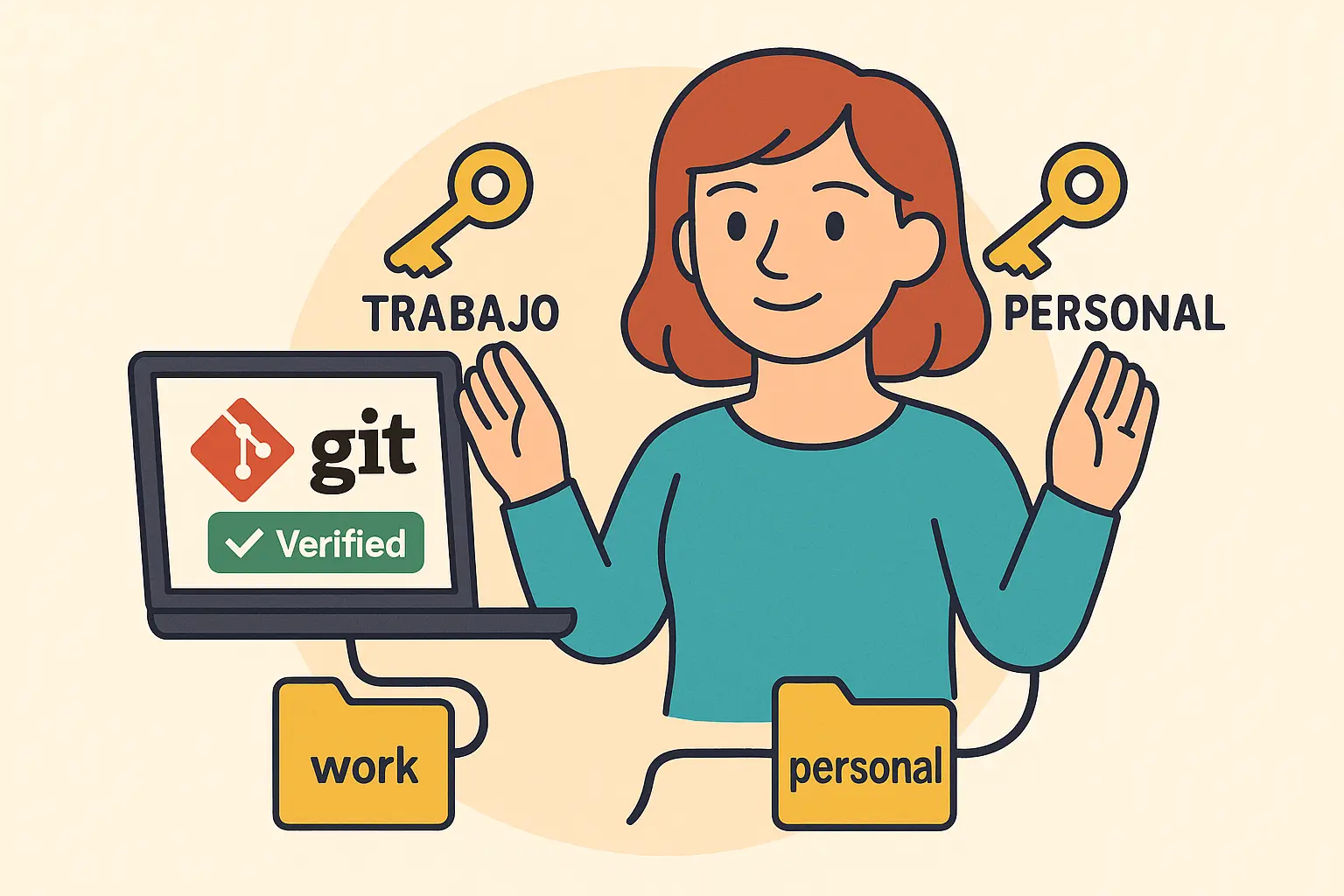
Have you ever seen those commits with the “Verified” badge on GitHub and wondered how to get it?
I wanted to achieve this at work, so I configured GPG to sign my commits and liked seeing that green badge so much that I thought “I want this in my personal projects too”.
The problem is that for work I use my corporate email, but for my personal projects I want to use my personal one.
💡 The solution
Git has a feature called includeIf that applies different configurations depending on the directory you’re in. Basically you tell it “if I’m in this folder, use this configuration”. So let’s get to it…
1. 🔑 Create the keys
First of all, if you don’t have GPG keys, you need to create them. On Mac I use GPG Keychain which makes everything easier.
- Create first key with your work email
- Create second key with your personal email
It will ask you for passwords for both, and it’s better to remember them well because the first time you make a commit with this new configuration it will ask for them.
2. 🔑 Add the keys to GitHub
Now we go to our GitHub GPG settings
- create a new GPG key for work by clicking on
New GPG key - give it a name,
workfor this case - copy our newly created key
- you can copy them very easily from GPG Keychain with right-click and
Copy.repeat the process for personal.
⚠️ Check that you copy the corresponding key from GPG Keychain, the email will give you the clue.
If you use GitLab, as is my case for this blog, and no, I don’t know what reason led me to do such a thing 🤷🏻♀️, it works the same way.
3. 🗂️ Organize the projects
I physically separated my projects, this is essential to later use the includeIf that I mentioned before.
mkdir -p ~/work     # For work
mkdir -p ~/personal # For personal projects
4. 🆔 Find the GPG key IDs
You can see this in GitHub’s GPG configuration (the screenshot above) or through this command:
gpg --list-secret-keys --keyid-format LONGThis shows you something like:
sec   rsa4096/1234567890ABCDEF 2023-01-01 [work]
sec   rsa4096/FEDCBA0987654321 2023-01-01 [personal]
The signingkey is what comes after the / in the line that starts with sec.
5. ☝️ Create specific configurations
For work (~/.gitconfig-work):
[user]
    name = Your Professional Name
    email = your-email@company.com
    signingkey = 1234567890ABCDEF

[commit]
    gpgsign = true
For personal projects (~/.gitconfig-personal):
[user]
    name = Your Name
    email = your-personal-email@gmail.com
    signingkey = FEDCBA0987654321

[commit]
    gpgsign = true
6. 🪄 Conditional configuration
Edit your main ~/.gitconfig and add:
[includeIf "gitdir:/Users/your-user/work/"]
    path = /Users/your-user/.gitconfig-work
[includeIf "gitdir:/Users/your-user/personal/"]
    path = /Users/your-user/.gitconfig-personal
Important: Use absolute paths, not ~. Git sometimes has problems with ~ expansion in these configurations.
Your directory structure ends up like this:
~/
├── work/
│   ├── company-project-1/
│   └── company-project-2/
├── personal/
│   ├── my-personal-app/
│   └── another-project/
├── .gitconfig           # Configuration with includeIf
├── .gitconfig-work      # Work configuration
└── .gitconfig-personal  # Personal configuration
💫 And voilà!
Now when I’m in any project inside ~/personal/, Git automatically uses my personal email and my personal GPG key. Same for ~/work/ with work configuration.
cd ~/personal/my-app
git config user.email
# your-personal-email@gmail.com

cd ~/work/company-project
git config user.email
# your-email@company.com

# See which configuration Git is using
git config --list --show-origin | grep user

# Verify the last signature
git log --show-signature -1
⚠️ Common problems
- Paths: Make sure to use full absolute paths
- Global configuration: Remove any global configuration that interferes:
git config --global --unset user.email git config --global --unset user.signingkey - Repository: Conditional configuration only works inside Git repositories, not in empty folders.